TL;DR
阅读前请知晓
🔔该生成器的兼容性
该生成器编写于 Office 365 版本的 PowerPoint ,Office 系列应该都能正常使用。下载前请先确认您使用的 PowerPoint 是否为 Office 系列。
🔔为什么 WPS 系列不适用?
根据 WPS 使用文档:如果需要使用 VBA 宏功能,需要购买 WPS 的商业标准版或者商业高级版, 个人版是没有宏的使用权限的。详细信息请参考:如何获取 VBA 宏的使用权限
🔔我可以将这个生成器分享给别人吗?
可以,本作品遵循 MIT License 协议。
🔔使用问题
如果使用时有问题请直接在本页面留言或者发邮件到 i#mail.vinking.top(将 # 替换为 @ )都可以得到及时的回复。
这两天得用云朵字体来做 PPT 。类似于下面这种:
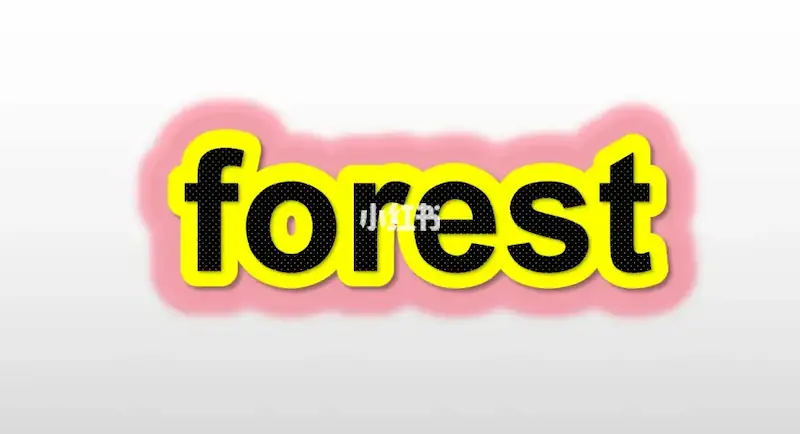
大概原理就是将文本框额外复制两份,然后调整那两份的文字轮廓。最后将这三个文本框对齐即可。

在网上转了一圈,云朵字体的免费教程都是教你怎么自己一个个来做,非常非常麻烦;而生成器则是需要付费的,看了看演示发现预设的效果比较少而且还不太好看。后面就自己用 PPT 自带的 VBA 做了一个可以自定义比较多选项的云朵字体生成器,可以按照设定一键生成并且复制云朵字体。

具体的 VBA 如下,可以在 PPT 里面以宏的形式使用:
Private Sub CommandButton1_Click()
    With ActivePresentation.Slides(1)
        If IsNumeric(.Shapes("FirstBackgroundColor_R_Box").OLEFormat.Object.Text) _
          And IsNumeric(.Shapes("FirstBackgroundColor_G_Box").OLEFormat.Object.Text) _
          And IsNumeric(.Shapes("FirstBackgroundColor_G_Box").OLEFormat.Object.Text) _
          And IsNumeric(.Shapes("SecondBackgroundColor_R_Box").OLEFormat.Object.Text) _
          And IsNumeric(.Shapes("SecondBackgroundColor_G_Box").OLEFormat.Object.Text) _
          And IsNumeric(.Shapes("SecondBackgroundColor_B_Box").OLEFormat.Object.Text) _
          And IsNumeric(.Shapes("TextColor_R_Box").OLEFormat.Object.Text) _
          And IsNumeric(.Shapes("TextColor_G_Box").OLEFormat.Object.Text) _
          And IsNumeric(.Shapes("TextColor_B_Box").OLEFormat.Object.Text) _
          And IsNumeric(.Shapes("FontSizeBox").OLEFormat.Object.Text) Then

            TextBoxValue = .Shapes("TextBox").OLEFormat.Object.Text
            FontSizes = .Shapes("FontSizeBox").OLEFormat.Object.Text

            FirstBackgroundColor_R = .Shapes("FirstBackgroundColor_R_Box").OLEFormat.Object.Text
            FirstBackgroundColor_G = .Shapes("FirstBackgroundColor_G_Box").OLEFormat.Object.Text
            FirstBackgroundColor_B = .Shapes("FirstBackgroundColor_B_Box").OLEFormat.Object.Text

            SecondBackgroundColor_R = .Shapes("SecondBackgroundColor_R_Box").OLEFormat.Object.Text
            SecondBackgroundColor_G = .Shapes("SecondBackgroundColor_G_Box").OLEFormat.Object.Text
            SecondBackgroundColor_B = .Shapes("SecondBackgroundColor_B_Box").OLEFormat.Object.Text

            TextColor_R = .Shapes("TextColor_R_Box").OLEFormat.Object.Text
            TextColor_G = .Shapes("TextColor_G_Box").OLEFormat.Object.Text
            TextColor_B = .Shapes("TextColor_B_Box").OLEFormat.Object.Text

            If .Shapes("Text").HasTextFrame Then
                With .Shapes("Text").TextFrame.TextRange
                    .Text = TextBoxValue
                    .Font.Size = FontSizes
                    .Font.Color.RGB = RGB(TextColor_R, TextColor_G, TextColor_B)
                End With
            End If

            If .Shapes("FirstBackground").HasTextFrame Then
                With .Shapes("FirstBackground")
                    .TextFrame.TextRange.Text = TextBoxValue
                    .TextFrame.TextRange.Font.Size = FontSizes
                    With .TextFrame2.TextRange.Font.Line
                        .Visible = msoTrue
                        .ForeColor.RGB = RGB(FirstBackgroundColor_R, FirstBackgroundColor_G, FirstBackgroundColor_B)
                        .Transparency = 0
                        .Visible = msoTrue
                        .Weight = 25
                    End With
                End With
            End If

            If .Shapes("SecondBackground").HasTextFrame Then
                With .Shapes("SecondBackground")
                    .TextFrame.TextRange.Text = TextBoxValue
                    .TextFrame.TextRange.Font.Size = FontSizes
                    With .TextFrame2.TextRange.Font.Line
                        .Visible = msoTrue
                        .ForeColor.RGB = RGB(SecondBackgroundColor_R, SecondBackgroundColor_G, SecondBackgroundColor_B)
                        .Transparency = 0
                        .Visible = msoTrue
                        .Weight = 50
                    End With
                End With
            End If

            With .Shapes.Range(Array("Text", "FirstBackground", "SecondBackground"))
                .TextFrame.HorizontalAnchor = msoAnchorCenter
                .TextFrame.VerticalAnchor = msoAnchorMiddle
                .TextFrame.WordWrap = msoTrue
                .TextFrame.AutoSize = ppAutoSizeShapeToFitText
                .Copy
            End With
        Else
            MsgBox "文字大小、背景颜色输入框请输入数字"
            End
        End If
    End With
End Sub

Private Sub CommandButton2_Click()
    With ActivePresentation.Slides(1)
        .Shapes("TextBox").OLEFormat.Object.Text = "A"
        .Shapes("FontSizeBox").OLEFormat.Object.Text = 60

        With .Shapes("Text").TextFrame.TextRange
            .Text = "A"
            .Font.Size = 60
            .Font.Color.RGB = RGB(0, 0, 0)
        End With

        With .Shapes("FirstBackground")
            .TextFrame.TextRange.Text = "A"
            .TextFrame.TextRange.Font.Size = 60
            With .TextFrame2.TextRange.Font.Line
                .Visible = msoTrue
                .ForeColor.RGB = RGB(255, 255, 255)
                .Transparency = 0
                .Visible = msoTrue
                .Weight = 25
            End With
        End With

        With .Shapes("SecondBackground")
            .TextFrame.TextRange.Text = "A"
            .TextFrame.TextRange.Font.Size = 60
            With .TextFrame2.TextRange.Font.Line
                .Visible = msoTrue
                .ForeColor.RGB = RGB(39, 154, 225)
                .Transparency = 0
                .Visible = msoTrue
                .Weight = 50
            End With
        End With

        .Shapes("TextColor_R_Box").OLEFormat.Object.Text = 0
        .Shapes("TextColor_G_Box").OLEFormat.Object.Text = 0
        .Shapes("TextColor_B_Box").OLEFormat.Object.Text = 0

        .Shapes("FirstBackgroundColor_R_Box").OLEFormat.Object.Text = 255
        .Shapes("FirstBackgroundColor_G_Box").OLEFormat.Object.Text = 255
        .Shapes("FirstBackgroundColor_B_Box").OLEFormat.Object.Text = 255

        .Shapes("SecondBackgroundColor_R_Box").OLEFormat.Object.Text = 39
        .Shapes("SecondBackgroundColor_G_Box").OLEFormat.Object.Text = 154
        .Shapes("SecondBackgroundColor_B_Box").OLEFormat.Object.Text = 225
    End With

    MsgBox "初始化完成"
End Sub
不想自己弄的话这里也有一整个生成器的 PPT 文件:
2024年02月24日 14:28
11111111111111(๑•̀ㅁ•́ฅ)
2023年09月23日 19:34
厉害了
2023年09月23日 19:33
牛X生成器OωO
2023年09月10日 21:36
2023年09月10日 21:39
2023年09月02日 22:42
牛的兄弟
2023年08月24日 10:45
太厉害了!
2023年06月05日 18:07
(´இ皿இ`)
2023年05月23日 23:34
感谢
2023年05月14日 15:54
感谢急
2023年05月03日 19:10
感谢分享
2023年04月29日 22:06
好赞
2023年04月26日 05:09
怎么获取
2023年04月23日 13:15
怎么获取
2023年04月23日 13:37
点击上面的分享卡片就可以了
2023年04月22日 00:08
太厉害了
2023年04月21日 23:51
真的太厉害了!
2023年04月20日 00:14
lihai
2023年04月18日 21:56
好强啊
2023年04月17日 08:13
太厉害了
2023年04月16日 00:19
1
2023年04月07日 21:44
哇塞,ppt还能这样用么